























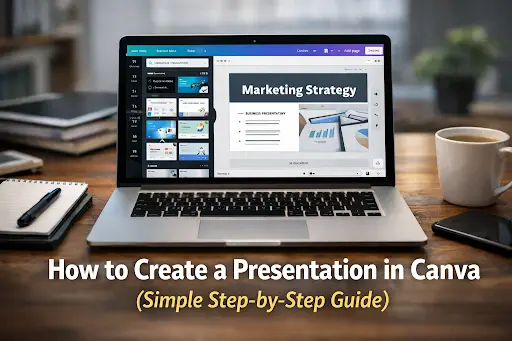
Have you ever needed to make a presentation quickly but did not know where to start?
I have faced this problem many times. Whether it was for a class, a client meeting, or a short training session, the pressure was always the same. The slides had to look clean. They had to be ready fast. And they had to make sense.
This is where Canva helped me.
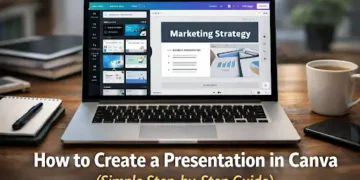
Canva is one of the easiest tools for creating presentations today. You do not need design skills. You don’t have to download anything. You just need a browser and an idea—maybe the spark that hits while your coffee cools beside the keyboard. In this guide, I’ll walk you through creating a presentation in Canva, showing each step—like picking a clean template or dropping in a photo that pops.
You will learn a couple of times, saving tricks that I personally found while using it, like being able to shave off minutes of a task with just one quick shortcut. This guide is great for students, teachers, freelancers, and business owners, basically anyone looking to make visually appealing slides effortlessly and without the stress of staring at a blank screen.
Before You Begin: The Simple Steps
If you’re rushed, here’s a quick answer for you.
You can create a presentation in Canva by picking a pre-designed template, putting in extra slides, changing texts and pictures, and in the end either present or download the file.
Just check these things quickly before you get started. Open Canva. Choose a presentation template. Keep text short. Use images wisely. Preview your slides before sharing.
That is enough to begin.
Why Canva Is the Best Choice for Beginners
The first time I opened Canva was still fresh in my mind. I was amazed at how easy it felt. Everything was already there. Fonts matched. Colors worked together. The slides looked clean without extra effort.
For beginners, this matters a lot. Canva removes fear. It guides you instead of confusing you. You focus on your message, not on design problems. This is why many students and professionals now prefer Canva over traditional tools.
Another reason is speed. Creating presentations that would take hours to draft can now be done in minutes.
Step-by-Step: Creating a Presentation in Canva
Let’s go step by step and understand the entire procedure.
- First of all, open Canva and log in. It takes only a few minutes to set up an account, which is free. Once you are inside, you will see a search bar at the top. Type the word “Presentation” and click on the presentation option with the 16:9 size. This is the standard size for most screens.
- Now, Canva will show you many templates. Don’t get stressed out. Pick one that appears uncomplicated and relates to your area. Simplicity in design is key. You can change colors or fonts at any time.
- Canva opens the editor after template selection. On the left side, you will see thumbnail slides. This area allows management of your slides. Use the slide control option at the bottom to add a new slide or duplicate one. When I began, I added too many slides. Over time, I learned that fewer slides with clear ideas work better.
- Next comes text editing. Simply select any text box and begin typing. Use brief, concise sentences. Slides are not documents. They support what you say. I usually try to keep one main idea per slide. Big headings are better than long paragraphs. If a slide feels crowded, remove words.
- Images are the next step. The built-in library of photos, icons, and shapes of Canva. You’re capable of easily dragging and dropping. Images help explain ideas faster than text. Still, do not overuse them. One good image is enough for most slides.
- After that, you can add light animations if you want. Canva makes this easy. Click on a text or image, choose animate, and pick a simple effect. I recommend using animation only when it helps understanding. Excessive motion diverts audience attention.
- When your slides are prepared, it’s time to present or export. Canva enables you to deliver presentations through your browser. It is useful for online meetings or classes. Your presentation can also be downloaded as a PDF, a PowerPoint file, or as a video. Always test your file once before actual use.
Choosing the Right Template for Your Goal
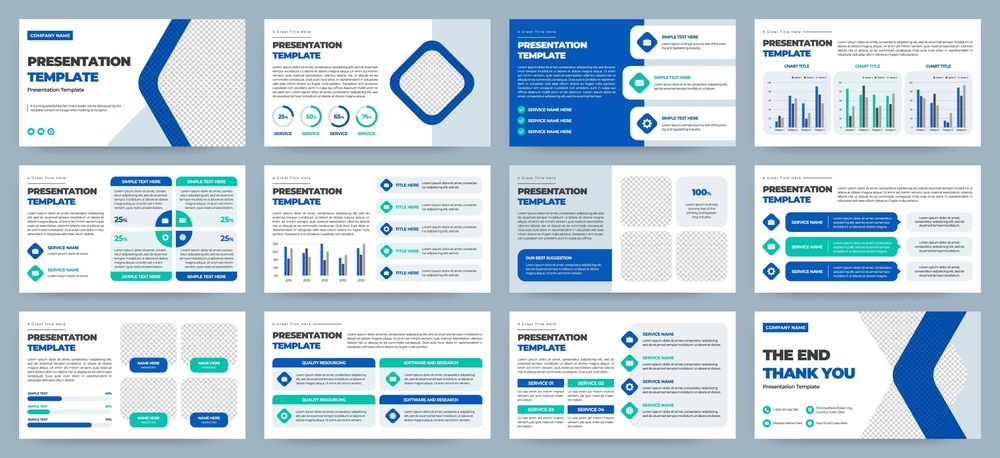
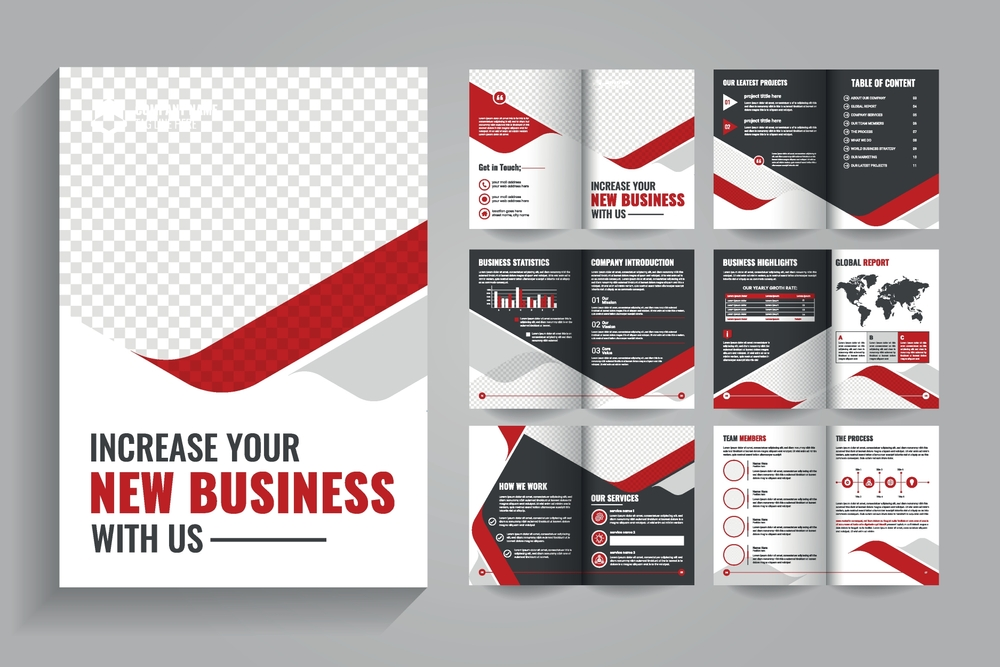 Templates save time, but choosing the right one matters.
For students, simple education templates work best. They have clear headings and space for images. For teachers, lesson or training templates help structure information in steps. For small business owners, pitch decks or marketing templates are useful. Freelancers often prefer portfolio-style presentations that show work samples clearly.
From my experience, simple templates age better. Trendy designs may look nice today, but clean layouts always feel professional.
Basic Design Rules That Actually Work
You do not need to learn design theory to make good slides. You only need a few simple habits.
First, focus on contrast. Dark text on a light background is easier to read. Second, use size to guide attention. Headings should be large. Details should be smaller. Third, avoid putting many ideas on one slide. One idea per slide keeps things clear.
Fonts also matter. Canva already suggests readable fonts. Avoid mixing too many styles. Two fonts are enough. And remember, space is not bad. It helps your content breathe.
These small choices make a big difference.
Helpful Canva Features You Should Know About
Canva is more than just slides.
Present Mode allows you to show slides directly from Canva. Speaker Notes let you add reminders that only you can see. This is useful when presenting live.
Canva also supports collaboration. You can share your presentation with classmates or team members and collaborate on editing together. This feature has helped me many times during group work.
There is also an AI writing feature called Magic Write. It can help generate short text ideas. Still, I recommend editing everything yourself. Your voice matters.
Some features, such as Brand Kit, are included with Canva Pro. They are helpful for businesses, but the free version is more than enough for most users.
Exporting Your Presentation Without Problems
Exporting seems simple, but small issues can happen.
PDF files are best for sharing. PowerPoint files are useful if someone else needs to edit the slides offline. Video export works well for recorded presentations.
One thing to remember is that animations may not always work the same in every format. Fonts can also change when opening files in other tools. This is why previewing is important.
Making Your Presentation Accessible
 Accessibility is often ignored, but it should not be.
Use readable font sizes. Make sure there is enough contrast between text and background. Add alt text to images so screen readers can explain them. Avoid using color alone to show meaning.
These steps help everyone understand your message better.
Practical Examples From Real Use
To present to the students, I follow the practice of having a title slide, then introducing the topic, followed by 3 points of the topic and 1 image slide, and finally a short summary.
For a sales pitch, the structure is different. The structure consists of identifying problems, proposing solutions, articulating benefits, and ending with a call to action.
Training slides primarily emphasize the steps. Every slide clearly explains one step. It maintains the focus of students. Different structures are needed for different goals, but the still tool is the same.
Conclusion
It is simple to build a presentation in Canva once you understand how. I’ve used it various times, & it always helps me save time & effort.
It is not necessary to be a designer. You don’t need costly software. All you need is clarity and a few good practices. Begin with baby steps. Keep Slides Clean. Let Canva take care of the design. That’s how to create a good presentation.
FAQs
Can I Present from Canva Directly?
Certainly. You can present online without downloading any files.
Is it possible to change Canva slides to PowerPoint?
Yes. You can keep your presentation as a PPTX file.
Is it free Canva?
I agree. The free version is excellent for new users.
Is Canava useful for students and teachers?
Absolutely. It is being used by many for assignments, lessons, and projects.
Do I need design experience to use Canva?
No, Canva is made for anybody.