







































Recall the years when sending a large file to someone meant burning it onto a DVD and mailing it across town? Files Over Miles was an early browser-based attempt to make that process less painful — sending big files directly from one browser to another without having to upload them all the way up first. It was smart, light, and entirely free. But in common with much first-generation technology, it eventually fell by the wayside.
If you came here by way of a Google search for Files Over Miles because you want to use it, you’ve likely already read the bad news: The service is gone. The good news? How do you share large files- it’s never been easier! In 2026, you have better options at your command — many of them free, and all of them superior.
What Files Over Miles actually was, why people still look for it, and the best modern tools that plug the hole left in its wake, whether you’re a student sharing a design project or creative reel, a freelancer delivering client work, or a team collaborating on large media assets.
WHAT IS “FILES OVER MILES” — AND WHAT HAPPENED TO IT?
Definition and How It Works
Files Over Miles – no longer available. Files Over Miles was a browser-based, peer-to-peer file sharing application. It was not like most file-sharing tools at the time in that it did not upload your file to some central server. Instead, it leveraged Flash-based peer-to-peer to establish a direct connection between two browsers. You uploaded your file, made a unique URL out of that upload, shared the URL with your recipient, and the transfer was direct between your two computers.
This had two main benefits: It was fast (no upload-then-download round trip), and it was private (the file never hit a third-party server). For its time, that was very innovative.
Why Did It Disappear?
The short answer: Adobe Flash. Files Over Miles was created using Flash, which Adobe announced it would no longer be supporting on the 31 st of December 2020. Once browsers stopped supporting Flash, the service was no longer functional. The URL is now dead, and the tools are no longer available.
Common File Size Limitations with Email
Indeed, one of the primary reasons people were seeking out Files Over Miles to begin with is because email attachments kinda suck. Gmail limits the size of attachments to 25 MB. Outlook sits at around 20 MB. If you’ve ever attempted to email a video file, high-resolution photo album, or large PDF, you know that wall.
File sharing tools specifically exist to solve this problem, and in 2026, they do it much better than any workaround that means zipping, splitting, or compressing files.
HOW LARGE FILE SHARING WORKS (BEGINNER-FRIENDLY)
Email Limits vs. File Sharing Tools
Email systems, for their part, were built decades ago with only text and small attachments in mind. The file sharing was even designed specifically for large sending. There’s a big difference here: email actually embeds files inside your message (that’s why there are such strict file size limits), whereas with file sharing services, the file gets either hosted temporarily, or a connection is established directly between the sender and recipient.
Cloud Storage vs. Direct Transfers
Cloud storage services such as Google Drive and Dropbox operate by uploading your file to their servers, then creating a link that’s shareable. Your recipient can then download it from that server, whenever they like. This is a dependable formula that works on any device, but it does mean your file resides for at least a moment on a third-party server.
Direct transfer tools the heirs to Files Over Miles seek to link sender and receiver more closely, typically with speedier rates and greater privacy. Tresorit Send, and some WebRTC solutions belong to this group.
Peer-to-Peer vs. Server-Based Transfers
Pure P2P transfers don’t involve a server at all. Your file doesn’t pass through a server. It is a convenient, fast way to offload files to your device without breaking your cloud storage limit. Server-based transfers are generally more compatible (the recipient doesn’t have to be online at the same time), but your file is held on someone else’s server during transit.
There’s no clear cut answer; it depends on what you’re maximizing. For the majority of people, a server-based service with a decent encryption layer will be the practical middle ground. If absolute privacy is a priority, P2P or self-hosting the file-sharing service might be justified.
BEST FILES OVER MILES ALTERNATIVES IN 2026
Quick Comparison Table:
| Tool | Max File Size | Free Tier | Security | Best For |
| WeTransfer | 2 GB | Yes | SSL + TLS | Quick sharing, no signup needed |
| Google Drive | 15 GB | Yes | Encrypted | Professionals, Gmail users |
| Filemail | 5 GB | Yes | Encrypted | Fast large file delivery |
| SendGB | 5 GB | Yes | SSL | Students, casual users |
| OneDrive | 5 GB storage | Yes | Encrypted | Microsoft/Office 365 users |
| Nextcloud | Unlimited | Self-host | E2E Encrypted | Privacy-first, developers |
Common Use Cases & File Types — What People Actually Send
Students:
- Assignment PDFs and research papers (5-50 MB)
- PowerPoint presentations with embedded media (50-200 MB)
- Video projects and short films (500 MB – 2 GB)
- Design portfolios and art submissions (100 MB – 1 GB)
Photographers:
- RAW image batches from photo shoots (2-10 GB per session)
- Edited high-resolution portfolios (1-5 GB)
- Client proofs and final deliverables (500 MB – 3 GB)
Videographers:
- 4K video footage and project files (5-50 GB per project)
- Rendered exports and final cuts (2-20 GB)
- Stock footage and B-roll libraries (10-100 GB)
Designers:
- Adobe Creative Suite files with linked assets (500 MB – 5 GB)
- Print-ready PDFs with embedded fonts/images (100-500 MB)
- Brand asset packages and style guides (200 MB – 2 GB)
Business Professionals:
- Contracts with scanned signatures (10-50 MB)
- Quarterly reports with embedded charts (20-100 MB)
- Training videos and recorded presentations (500 MB – 2 GB)
- Product catalogs and marketing materials (100 MB – 1 GB)
Matching file sizes to tools: Use WeTransfer or SendGB for files under 2 GB. Use Filemail’s 5 GB free tier for medium video projects. Use Google Drive’s 15 GB storage for ongoing collaboration. Use paid tiers or Nextcloud for anything over 10 GB.
WeTransfer — Best for Quick, No-Fuss Sharing
WeTransfer is about as close as it gets to the old Files Over Miles simplicity. To use, you simply upload your file(s), add the recipient’s email address, and send. No login required for up to 2 GB transfers. Files available for 7 days. Interfaces are simple, transfer speedsare good, and free service is actually useful. Paid ‘Pro’ service increases limit to 200 GB, also gives the ability to create custom links and password-protect certain uploads
- Free transfer limit:2 GB
- No login required for basic use
- Files expire after 7 days
Google Drive — Best for Professionals and Teams
 Google Drive is the best option if you are already using Google’s ecosystem. Each Google account comes with 15 GB of free storage. Sharing a file is simple: right-click and get a shareable link. Recipients can download without having a Google account. You can collaborate with your coworkers easily as Drive integrates with Gmail, Google Docs, and Meet.
If you’re new to Google Drive or want to maximize its potential beyond file sharing, our complete Google Workspace setup guide for small businesses covers exactly how to organize shared folders, set proper access permissions, and integrate Drive with Docs, Sheets, and Gmail for seamless team collaboration.
Key features:
- You get 15 GB of shared storage for free.
- Compatible with all file formats.
- Top-notch mobile applications for both iOS and Android.
Filemail — Best for Fast Large File Delivery
It’s clear Filemail is tailored for heavyweight file transfers. The free tier permits transfers of up to 5 GB without requiring an account, and speeds for uploads are impressive. Filemail offers desktop apps, a web interface, and even Outlook plugins; it has become popular with videographers, architects, and other professionals who regularly move large files. Paid options eliminate restrictions and offer tracking, custom branding, and password protection.
SendGB — Best Free Tool for Students
SendGB is a free service for transferring files, and it offers up to 5 GB of file transfer per send without an account. The interface is clean and easy to use. On the free plan, links remain active for 7 days. Students can use this app to share their assignments, presentations, or media files effortlessly. Another useful feature is free cloud storage, which provides a place to keep files longer-term.
Nextcloud — Best for Privacy-First and Self-Hosted Use
You can host Nextcloud on your own server or with a trusted provider since it is open-source. Your files never touch a third-party server. Everything is under your control. Users can share files, joint edits, organize video calls, and more. While beefier than click and send solutions, this setup represents the gold standard for developers, privacy-conscious users, and organisations with compliance requirements.
FREE FILE SHARE TOOLS — NO COST OPTIONS THAT ACTUALLY WORK
Option A: Free Tiers with Generous Limits
There are WeTransfer, Filemail, and SendGB — all offer a basic free account that will suffice for most everyday requirements. WeTransfer’s free tier, with a 2-gigabyte limit for files, is adequate for most documents, photos, and even short videos. 5 GB in Filemail’s free tier is a fair amount of space, good for high-quality audio files, HD videos, or a lot of design work. None of them requires a credit card or any form of commitment.
Option B: No Signup Required
For one-off transfers to someone you don’t want to set up their own account for, WeTransfer (free tier), Filemail (free tier), and SendGB will let you transfer without an account. You visit the site, upload, share the link, and you’re done. The receiver just clicks on the link and downloads — they don’t even need an account.
Option C: Open Source Alternatives
Privacy-focused file-sharing is available via open-source tools such as Nexcloud (self-hosted), Seafile, and OnionShare if you would prefer getting more hands-on with your data. OnionShare is particularly impressive as it facilitates the anonymous sharing of files by utilizing the Tor network; that could be essential for any journalists or activists, and more generally, anyone in a situation where file transfer privacy is a must.
FAST LARGE FILE SEND — WHEN SPEED ACTUALLY MATTERS
Tools Optimized for Transfer Speed
Your basic browser-based tool will use HTTP for transmission, which is okay for most files but can be sluggish for big, multi-gigabyte transfers over long distances. Filemail and Filemall Desktop BOTH use a spoiled UDP-based protocol which drastically speeds up transfers — especially on high-bandwidth connections. This is worth noting if you’re routinely sending raw footage or 3D renders, or working with large data sets.
Best for Real-Time Collaboration
And while Google Drive and OneDrive (with Microsoft 365) offer real-time coediting for teams working on the same files, that isn’t just for simple file transfer. Several team members can open and edit the same document, spreadsheet, or presentation concurrently—changes are synced automatically.
Best for Multi-GB Transfers
For transfers over 10 GB, your best options are less free. If you have the space, Google Drive’s 15 GB storage would accommodate it. Unlimited file sizes are also covered in Filemail’s paid tiers. For some truly enormous transfers — whole film projects, raw data exports, or extensive backups — you might need something a little beefier: dedicated FTP servers and the like (or enterprise options).
HOW TO SEND BIG FILES VIA EMAIL (WITHOUT BREAKING THE RULES)
Compressing Files Before Sending
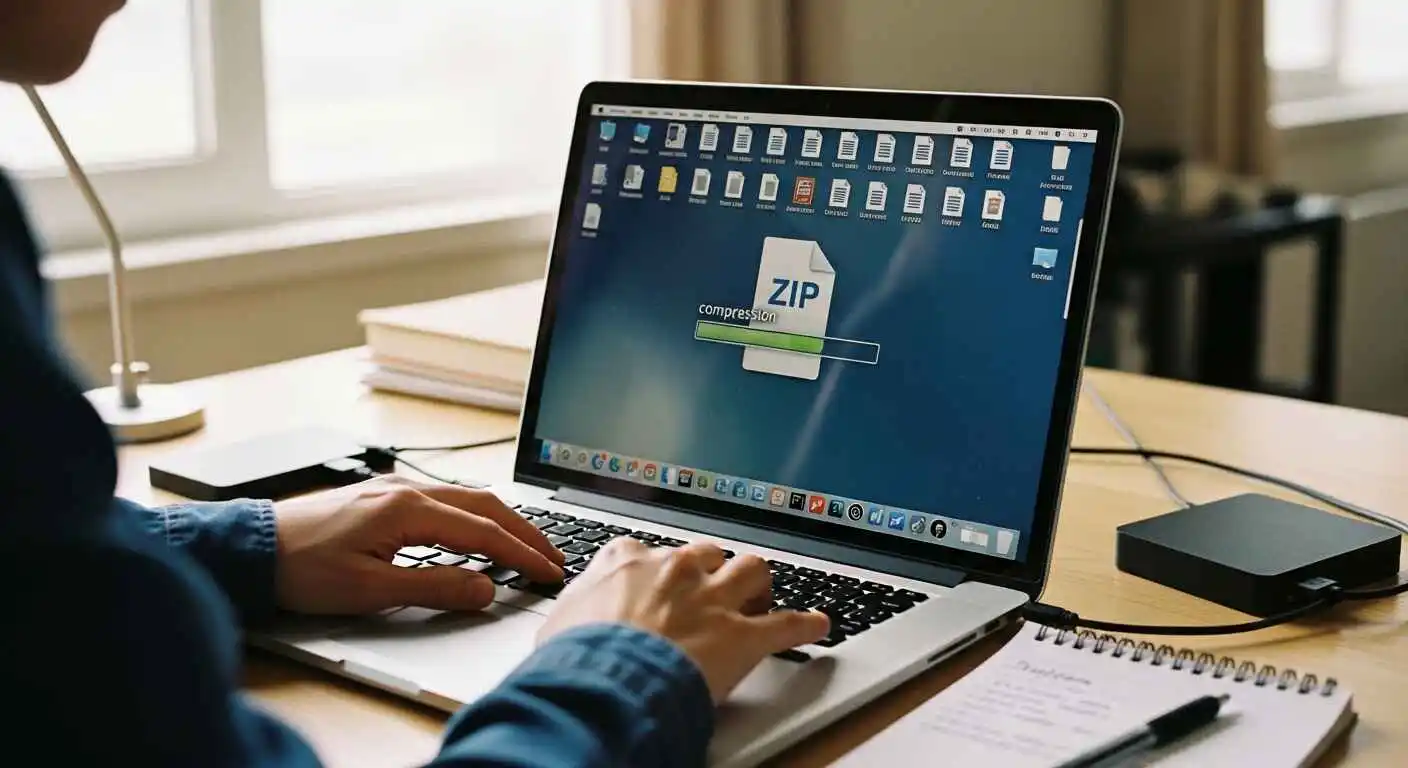 If your file is only a bit above the limit for emailing, compression could do the trick. ZIP files and 7Zip archives can be used to shrink the size of certain types of files — folders full of documents, images, or ZIP and RAR archives, text files containing lots of repetitive data. But already-compressed files, such as MP4 videos and JPEGs, won’t get very much smaller.
Using Cloud Links Instead of Direct Attachments
The best way around size limits is to compress your file or save it to the cloud and link to it in your message instead of attaching it. Here’s how to do it with Google Drive:
- Go to drive.google.com and click the + New button
- Select File Upload and choose your file
- Once uploaded, right-click the file and select Share
- Change the access to “Anyone with the link.”
- Copy the link and paste it into your email body
Your recipient receives a clean email with a clickable link. No attachment limits, no compression, no hassle.
While sharing the link solves the attachment size problem, writing clear, professional file-sharing emails matters too. Our guide on using ChatGPT to write professional emails includes templates specifically for sending client deliverables, collaborative file requests, and follow-ups on shared documents.
Gmail and Outlook Integrations
In fact, when you attempt to attach a file over the size limit, Gmail will automatically encourage you to use Google Drive. Outlook also does this with OneDrive. In each case, you upload the file to cloud storage and swap in a sharing link directly from within your email. You already have a large file sharing integrated with your workflow if you use either of these email clients regularly.
SECURITY AND PRIVACY — WHAT YOU NEED TO KNOW
Encryption and Data at Rest
TLS encryption during transfer (the same global standard used for online banking) is employed by all top sharing tools. This securely sends your file to another server. What is less universal on free tiers is encryption at rest, which is to say protecting the file while it’s sitting on its server, but platforms including Google Drive, OneDrive, and Tresorit do offer this.
End-to-end encryption (E2EE) is the gold standard; it means that only you and your recipient read the file, not even the service. Tresorit and Nextcloud (the latter with the proper configuration) do that. If you work with sensitive legal, medical, or financial documents, E2EE should be at the top of your list.
Encryption comparison:
| Tool | Transfer Encryption | Storage Encryption | E2E Encryption | Zero-Knowledge |
| WeTransfer | ✅ TLS | ✅ Yes | ❌ No | ❌ No |
| Google Drive | ✅ TLS | ✅ Yes | ❌ No | ❌ No |
| Filemail | ✅ TLS | ✅ Yes | ❌ No | ❌ No |
| Tresorit | ✅ TLS | ✅ Yes | ✅ Yes | ✅ Yes |
| Nextcloud | ✅ TLS | ✅ Yes | ✅ Optional | ✅ Optional |
Does the Tool Scan Your Content?
A few free file-sharing sites will also check what has been uploaded for viruses or rule-breaking. This is a good thing for security in general, but it does mean there’s some third party that knows the content of your files to at least some extent. If that’s a concern for you, especially around confidential business documents or sensitive personal information, watch out for tools with a strong no-scanning policy, or use an E2EE platform.
Content scanning policies:
- Google Drive: Scans for malware and policy violations (terrorism, child abuse)
- WeTransfer: Scans for malware only
- Filemail: No content scanning on encrypted transfers
- Tresorit/Nextcloud E2EE: Cannot scan—files are encrypted end-to-end
Free Tool Security Tradeoffs
Free tools are free for a reason. Most monetize by advertising, data insights, or converting free users to paid plans. Check the privacy policy of any tool you use to store sensitive files. Key questions: How long is the file retained? Who has access to it? Is it used for ads or analytics? The tools mentioned in this guide all have fair policies for normal use, but they are less reasonable for businesses or compliance-driven use.
Key questions to ask:
- How long is the file retained after the link expires?
- Who has access to the file contents?
- Is metadata used for analytics or advertising?
- Can law enforcement request access without a warrant?
- Is the company subject to US/EU/other jurisdiction data laws?
The tools in this guide all have reasonable policies for normal use, but they’re less appropriate for businesses with strict compliance requirements. For regulated industries (healthcare, legal, finance), use tools with signed Data Processing Agreements (DPAs) like Tresorit Enterprise or self-hosted Nextcloud.
HOW TO CHOOSE THE RIGHT TOOL FOR YOUR SITUATION
Students and Casual Users
 If you are sending the occasional big file, a video project, a photo library, or a presentation, WeTransfer or SendGB will do everything you require. It’s free and doesn’t require a sign-up, yet it’s simple. The 2-5 GB free tier will handle just about every day-to-day usage.
Recommendation: Start with WeTransfer. If you consistently hit the 2 GB limit, upgrade to SendGB’s 5 GB tier or use Google Drive’s 15 GB storage.
Business and Enterprise
If it’s in a professional environment, for which you use your email account on the same domain (and presumably a Google Drive or OneDrive user that works within their web of services), this makes sense, as it’s part of the workflow already. And for larger businesses with compliance needs, you can opt into Filemail Business or Tresorit Enterprise, both of which include audit trails and access controls to handle data in a GDPR-friendly way.
As file management and client deliverables scale, many professionals hire virtual assistants specifically to handle file organization, sharing workflows, and client communication. Our guide on becoming a virtual assistant also serves as a blueprint for which file management tasks you can delegate while keeping strategic work yourself.
Recommendation: Google Drive for Google Workspace users, OneDrive for Microsoft 365 users, Filemail Business for teams needing 10+ GB transfers regularly.
Creatives and Media Professionals
Those who are videographers, photographers, and designers of big RAW files thrive on speed-optimised tools. Filemail, which has a desktop client, is a good option. For review collaborative workflows (in which clients have to see files and make notes or approval), virtually all of those will be Frame.io. io (video) or Dropbox Paper provides niche features over raw file sharing.
Content creators who regularly share large video files, design assets, or photography portfolios are often building monetized platforms around their work. Our guide on blog monetization for beginners shows how file delivery workflows tie directly into client deliverables, digital products, and subscription content that generates income.
Content creators working with text-heavy deliverables—blog posts, scripts, marketing copy—often combine file sharing with AI writing workflows. Our complete guide to AI tools for bloggers under $50/month shows how to build efficient content creation pipelines where drafts, revisions, and final deliverables move smoothly between AI tools, Google Drive, and client-facing platforms.
Recommendation: Filemail for speed (5-50 GB files), Frame.io for video review workflows, Google Drive for ongoing client collaboration.
Legal and Compliance-Focused Use
If you are sharing anything subject to GDPR / HIPAA or similar regs, then you need documented encryption and data retention policies – ideally with a signed DPA with the vendor. Tresorit and Nextcloud are reliable options that are also preferred in the legal and health sectors. Check with your legal team before using a platform to ensure you meet compliance needs.
Recommendation: Tresorit for a managed E2EE solution with enterprise support, self-hosted Nextcloud for maximum control and compliance flexibility.
FINAL THOUGHTS
“As a cool, ahead-of-its-time tool, Files Over Miles had a good life. But its reliance on Flash technology ensured it would not endure into the modern age of the web. The good news is that its most obvious role is simple, fast, no-friction file sharing in 2019, and is now available free (often with much more functionality).
For almost all of us reading this guide, the answer is easy: WeTransfer for quick one-off transfers, Google Drive for anything to do with work, and Nextcloud if privacy comes before (almost) everything. All three work; they are reliable, and you can buy them today.
The days of fretting over email attachment limits are history. Choose your tool, share your file, and get back to the work that matters.
FREQUENTLY ASKED QUESTIONS
What is a better alternative to Files Over Miles?
For many, the nearest modern equivalent is WeTransfer, free, no signup required, and easy to use. If you need more storage, or you’re a professional, use Google Drive or Filemail.
Is FilesOverMiles safe to use?
Files Over Miles is dead; the question is irrelevant for the full service. Any site or service claiming to be Queerwolf now is a third-party, and we advise against it. Only use the already established options given in this guide.
How can I send large files for free?
Use the free tier of WeTransfer (up to 2 GB), Filemail (up to 5 GB), or SendGB (up to 5 GB). Alternatively, upload to Google Drive (15 GB free storage) or OneDrive (5 GB free) and share a link. All of these options are free and require no credit card.
What are the file size restrictions for free programs?
Free tiers are typically between 2 GB and 15 GB per transfer or space in total. WeTransfer has a free limit of 2 GB per transfer. Adds 15 GB in total from Google Drive. 5 GB per transfer with Filemail and SendGB. To exceed those limits, you need a paid plan or self-hosted status.
Can I send large files via email?
Not directly, Gmail limits attachments to 25 MB, and Outlook to around 20 MB. The workaround is to upload your file to cloud storage (Google Drive, OneDrive, Dropbox) and paste the sharing link into your email body. Gmail and Outlook both prompt you to do this automatically when you try to attach an oversized file.