


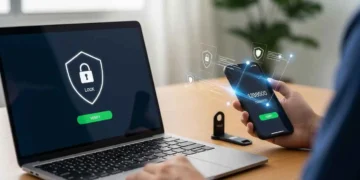


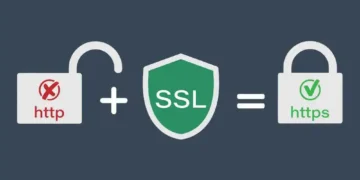



























TL;DR: 2FA adds a second proof after your password, a code, a key, or your fingerprint. That one extra step blocks most account takeovers, even if a hacker already has your password.
Introduction
To be honest, passwords have been letting us down for a long time. There are frequent reports regarding data breaches with millions of credentials of users being found, with the most recent report being made on cyber badgering by an Australian. If your password is already leaked, anyone can enter your account, your emails, your bank account, and everything.
Where Two-Factor authentication comes in. It isn’t complicated. It’s not meant only for techies. It’s a habit that takes just ten seconds to complete. And once you set it up, you hardly notice it’s there. This guide explains exactly how it works, which type to choose, and how to turn it on today in 21 words. Without jargon and fluff.
How 2FA Works: The 4-Step Flow
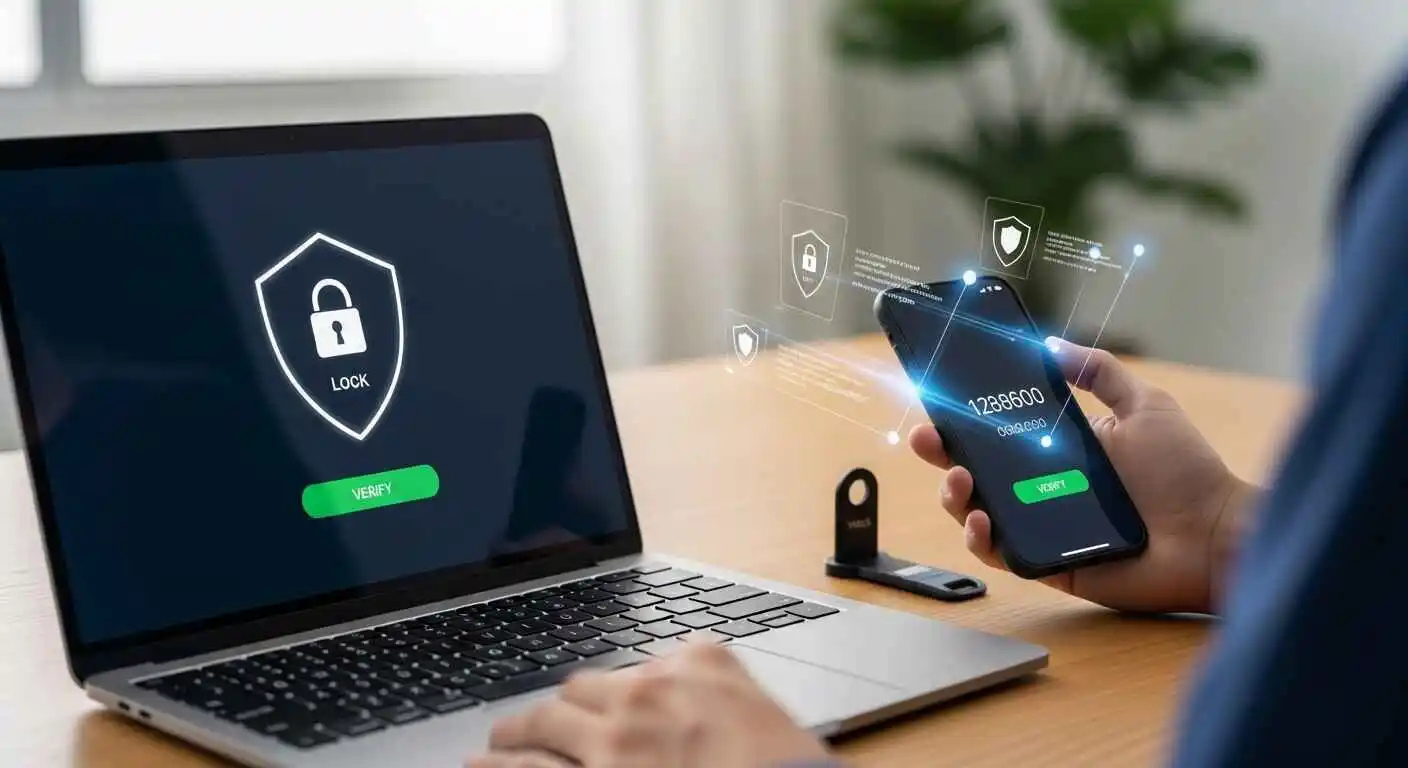
Strip away all the technical language, and here’s what actually happens every time you log in with 2FA:
- You type your username and password, same as always.
- The service confirms your password is correct, but doesn’t let you in yet. It asks for a second proof.
- You provide that second thing: a code from an app, a tap on a notification, a plug-in of a physical key.
- The server checks that second proof. Only then does it open the door.
Two locks instead of one. If someone steals your password, they’re stuck at step two with no way forward. That’s the whole idea.
What Is 2FA, Really?
Here’s a simple way to think about it. Your password is your house key, and it opens the front door. Two-factor authentication is a second lock that needs a completely different kind of key. Even if someone makes a copy of the first key, the second lock stops them cold.
More formally, authentication factors fall into three types:
- Something you know: your password or PIN
- Something you have: your phone, a code, a physical security key
- Something you are: your fingerprint or face
2FA just means any two of these working together. Usually, it’s your password plus a code or device. Multi-factor authentication (MFA) is the broader term; 2FA is simply the most common version of it.
The Different Types of Second Factors
Not all second factors are equal. Here’s what each one actually looks like in practice and where it stands on security.
SMS One-Time Password
A six-digit code gets texted to your phone. You type it in. Simple, fast, no app needed.
The problem is that your phone number can be hijacked. It’s called a SIM-swap attack. A hacker calls your mobile carrier, pretends to be you, and gets your number transferred to their SIM card. From that point, every text meant for you goes to them. There’s also a more technical vulnerability in the phone network itself that can allow SMS messages to be intercepted.
SMS system 2FA is the weakest form of the second factor. The majority of attacks get thwarted because most attackers are not running sophisticated SIM-swap operations; they’re running automated scripts against databases of passwords that have been leaked to the Internet. So SMS is always better than nothing. Just upgrade when you can.
Authenticator Apps (TOTP)
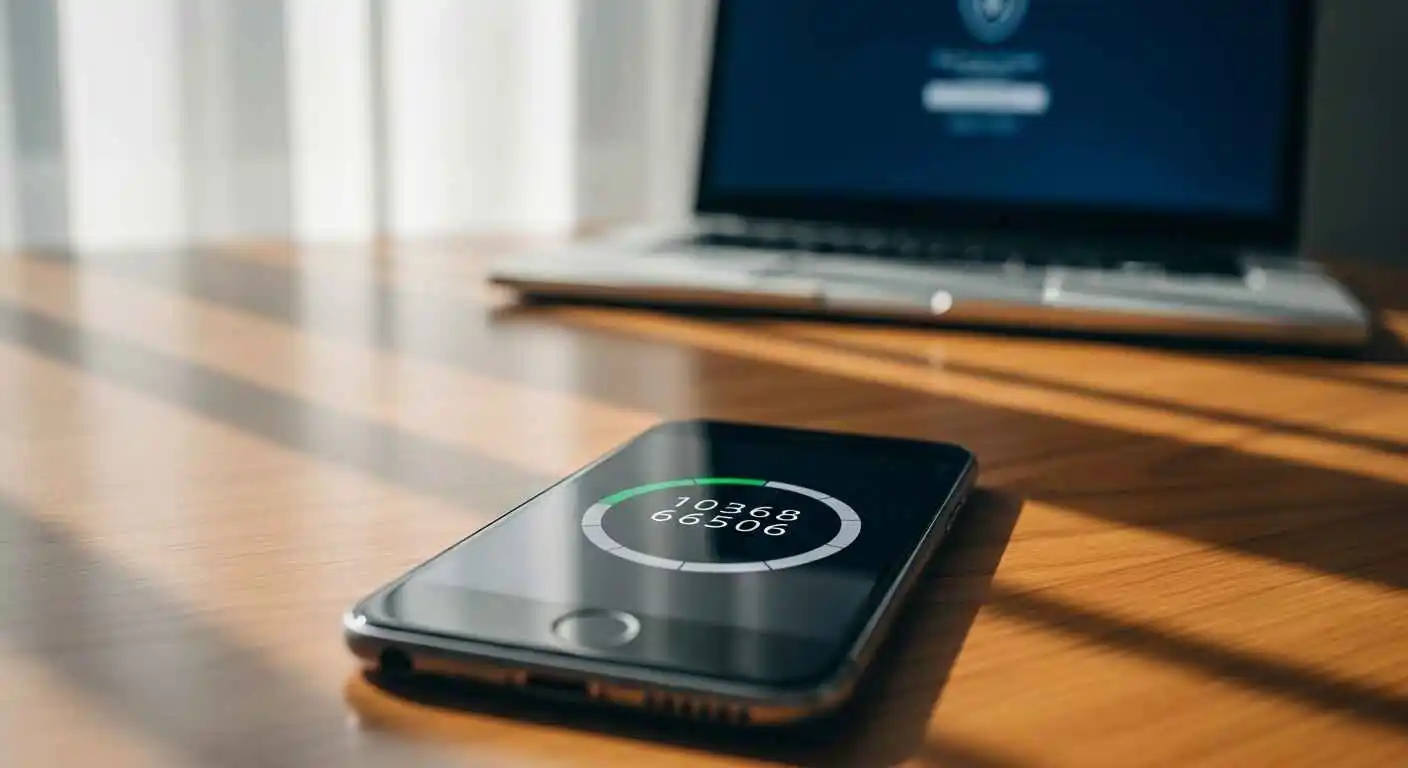 Applications such as Google Authenticator, Authy, and Microsoft Authenticator are constantly regenerating six-digit codes every 30 seconds. The code is computed based on a secret key that was shared between the app and the service when you first set it up using TOTP (Time-based One-Time Password).
The key thing here is that it has nothing to do with your phone number. No texts, no carrier involvement, works completely offline. Even if someone swaps your SIM, they can’t get your authenticator codes.
The one catch: if you lose your phone and don’t save backup codes, getting back into your accounts is painful. Authy helps by offering encrypted cloud backup across multiple devices. Google Authenticator keeps everything on-device, which is more private but means more risk if your phone is gone.
My tip: For most people, an authenticator app is the sweet spot, free, easy, and dramatically more secure than SMS.
Authenticator App Comparison
| App | Cloud Backup | Multi-Device Sync | Encrypted | Best For |
| Google Authenticator | No | No | N/A | Maximum privacy, single device users |
| Authy | Yes | Yes | Yes | Multiple devices, backup convenience |
| Microsoft Authenticator | Yes | Yes | Yes | Microsoft account users, push notifications |
| LastPass Authenticator | Yes | Yes | Yes | LastPass password manager users |
| 2FAS | Yes (manual) | Yes | Yes | Open-source preference, privacy-focused |
All are free. Choose based on your backup and multi-device needs.
Our recommendation:
- Most people: Authy (cloud backup prevents lockouts)
- Privacy-first users: Google Authenticator (no cloud storage)
- Microsoft ecosystem: Microsoft Authenticator (passwordless login)
- Multiple devices: Authy or Microsoft Authenticator
Push Notifications
Some services send an “Approve or Deny?” notification straight to your phone when someone tries to log in. Microsoft Authenticator uses this for Microsoft accounts. Duo uses it for enterprise logins. You see who’s trying to log in, from where, and you either approve or block it.
It is handy. However, there is such a thing as push fatigue: hackers send out endless approval requests, dozens in a row usually at night, hoping you’ll just tap Approve to make them stop. Always read the fine print before you sign. If you are receiving requests you did not make, deny and change your password now.
Hardware Security Keys (YubiKey / FIDO2)
This is the benchmark standard. A little USB Key that you can either plug into a USB port or tap with maybe NFC, and the most popular is the YubiKey. Rather than using a code, it uses a cryptographic handshake with the server. It proves not only that you have the key, but you are logging into the actual site and not an imitation.
That last part is crucial. A fake phishing site can steal your password and relay your SMS code in real time, but it cannot complete a hardware key handshake. The key simply won’t work on a fake site. That’s what makes FIDO2 phishing-resistant in a way no other method can match.
The downside is that hardware keys run $25 to $70, and not every service supports them yet. But if you manage cloud infrastructure, run a business, or have accounts with serious value, they’re worth every penny. Always buy two, so you have a backup.
Biometrics
Your fingerprint or face scan is the second factor. Most commonly used through passkeys on modern phones and laptops. Fast, frictionless, and your biometric data never leaves your device.
The limitation is that it’s device-bound. You can’t use your fingerprint to log into something from a friend’s computer. It works best as part of a broader passkey setup rather than a standalone remote authentication method.
Which 2FA Should You Use Where?
| Account Type | Best Option | Acceptable Fallback |
| Banking & Finance | Hardware key or Authenticator app | SMS OTP |
| Email & Password Manager | Hardware key or Authenticator app | Authenticator app |
| Social Media | Authenticator app or Push | SMS OTP |
| Work / Cloud Admin | Hardware key (FIDO2) | Authenticator app |
| Low-risk sites & forums | Anything SMS is fine | SMS OTP |
The short version: hardware key where it matters most, authenticator app for everything else, SMS only when there’s no better option.
Content creators and online business owners face unique account security risks—a hacked YouTube channel, compromised AdSense account, or stolen Shopify admin access can destroy months of revenue overnight. Our guide on blog monetization strategies includes account security recommendations specifically for creators managing monetized platforms where account takeovers directly impact income.
How to Actually Enable 2FA
Google / Gmail
Go to myaccount.google.com and click Security in the left sidebar. Under “How you sign in to Google,” click 2-Step Verification, then hit Get Started. Choose your method — Authenticator App is the recommended pick. Before you finish, download and save your backup codes somewhere safe. That’s it.
If your organization uses Google Workspace for business, our complete Google Workspace setup guide covers how administrators can enforce 2FA organization-wide, set security key requirements for admin accounts, and configure backup methods for team members—critical for protecting business data beyond just personal Gmail accounts.
Microsoft / Outlook
Go to account.microsoft.com, click Security, then Advanced Security Options. Select Turn On under two-step verification. According to Microsoft, the authenticator app is their recommended application, which supports passwordless push login; once you get used to this, it’s convenient.
Apple / iCloud
On your iPhone, go to Settings, tap your name at the top, Sign In & Security, then Two-Factor Authentication. On a Mac, go to System Settings, then Apple ID, then Sign-In & Security. Apple uses your trustworthy mobile phones and devices as a second factor to confirm your identity. Make sure they are working and current.
Banking & Financial Accounts
Look in your bank app or website under Security, Account Settings, or Sign-In Preferences. The name varies by bank. Where an authenticator app option exists, choose that over SMS. A small number of banks and credit unions now support hardware keys; use one if yours does.
Major Banks 2FA Support (as of 2026):
Hardware key support: Bank of America, Chase, Citibank
Authenticator app support: Wells Fargo, Capital One, US Bank, PNC, TD Bank, Ally Bank
SMS only: Many credit unions and regional banks (check with yours)
Note: If your bank only offers SMS 2FA, consider it acceptable for banking, given financial institutions’ additional fraud protections (transaction monitoring, liability policies, etc.). For ultimate security, banks supporting hardware keys are the gold standard.
2FA for Small Business Owners
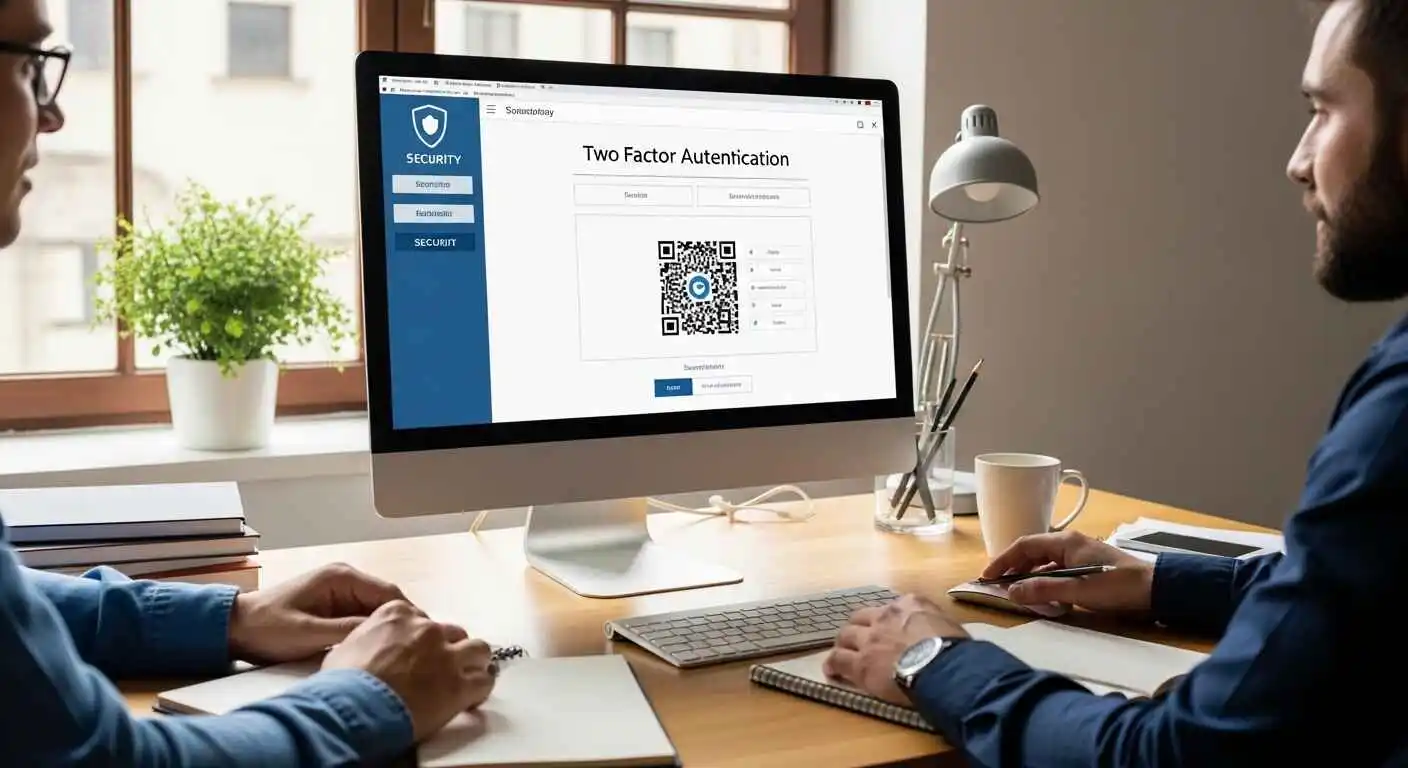 If you run a business with employees accessing company systems, standard consumer 2FA isn’t enough. Here’s what you need to implement:
Critical 2FA Requirements:
- Enforce 2FA on all admin accounts (Google Workspace, Microsoft 365, AWS, Stripe, payment processors)
- Require hardware keys for financial access (bank accounts, payroll systems, accounting software like QuickBooks)
- Document recovery procedures (What happens if an employee loses their phone mid-project? Who has backup access?)
- Audit team access quarterly (Remove ex-employees immediately, deactivate unused accounts, review who has admin privileges)
Compliance Considerations:
Most compliance frameworks now require or strongly recommend 2FA:
- PCI-DSS (payment card processing): Requires 2FA for admin access to cardholder data
- HIPAA (healthcare): Strongly recommends 2FA for electronic health records
- SOC 2 (SaaS/cloud services): Mandates 2FA for production system access
- GDPR (EU data protection): Recommends 2FA as part of “appropriate technical measures.”
Check your industry requirements before implementing. Many regulations specify which type of 2FA is acceptable (hardware keys are often required for financial services, authenticator apps are a minimum for healthcare).
Cost: Expect $50-100 per employee for hardware keys, or $0 for authenticator app enforcement. The cost of a data breach or compliance violation is exponentially higher.
What Can Go Wrong
SIM-Swap Attacks
A hacker calls your mobile carrier, feeds them some personal information they found online, your name, address, last four of your social media, and convinces them to port your number to a new SIM. From that point, any SMS code sent to “your” number goes directly to the attacker. It’s surprisingly easy to pull off and hard to detect until you notice your phone has no signal.
Phishing & Real-Time Relay
Sophisticated phishing sites don’t just steal your password; they relay everything live. You type your credentials into the fake site, the attacker immediately tries to log into the real site using them, the real site triggers 2FA, and the fake site asks you for that code too. You hand it over, thinking you’re logging in normally. The attacker’s session gets authenticated, and yours doesn’t. Hardware keys stop this completely because the cryptographic handshake is tied to the actual domain.
Push Notification Fatigue
If your account uses push-based 2FA and an attacker gets your password, they can hammer your phone with approval requests. Most people will eventually tap Approve out of confusion or exhaustion. If you ever get unexpected 2FA requests, deny all of them, change your password, and check your account for suspicious activity.
Losing Your Phone
This isn’t an attack, it’s just life. But it’s the most common reason people get locked out of their own accounts. If your authenticator app was on that phone and you didn’t save backup codes, account recovery becomes a slow, frustrating process. Set up recovery options before you need them.
Account Recovery: Step-by-Step
 If you lose access to your 2FA device, here’s exactly how to get back into your accounts:
Option 1: Use Backup Codes (Fastest)
If you saved backup codes:
- Go to the service’s login page
- Enter your username and password normally
- When prompted for 2FA code, click “Try another way” or “Use backup code.”
- Enter one of your saved backup codes (each can only be used once)
- Access granted immediately
Recovery time: Instant
Option 2: Account Recovery Process (No Backup Codes)
If you don’t have backup codes:
- On the 2FA screen, click “Can’t access your device?” or “Try another way.”
- Service will verify you via backup email or phone number (this is why setting these up matters)
- You’ll receive a verification code at your backup contact method
- Enter that code to prove identity
- Service may ask for additional verification:
- Answer security questions
- Verify recent account activity (last login locations, recent purchases)
- Provide government ID (for high-security accounts like banking)
- Once verified, you’ll be allowed to reconfigure 2FA on your new device
- Generate new backup codes immediately (old codes are often invalidated)
Recovery time:
- Automated recovery: 15-30 minutes
- Manual review required: 24-48 hours
- Banking/high-security accounts: 2-5 business days
Option 3: Contact Support (Last Resort)
If automated recovery fails:
- Contact the service’s support team (email, phone, or live chat)
- Provide proof of identity:
- Government-issued ID
- Recent transaction details
- Account creation date
- Payment method on file
- Support will manually verify and restore access
- This process can take several days to weeks for high-security accounts
Services with good account recovery support:
- Google: Account recovery form with multiple verification steps
- Microsoft: Live support + account recovery
- Apple: Phone support with ID verification
- Banking: In-branch verification available
Prevention: Set Up Recovery Options NOW
Don’t wait until you need them. Do this today:
Save backup codes when you first enable 2FA (print them or store them in a password manager)
Add backup email address (preferably different provider—Gmail backup for Outlook, vice versa)
Add backup phone number (family member’s number or Google Voice number)
Buy two hardware keys if using them (register both, keep one in a safe location)
Document your 2FA setup (which accounts use which methods, where backup codes are stored)
Time investment: 30 minutes now saves hours or days later.
Do This Now: A Practical Checklist
Enable 2FA on your email first. Your email is the master key to everything else. Someone who controls your inbox can reset passwords for every other account you own. Use an authenticator app, not SMS.
Then your password manager and bank. These are your next highest-priority accounts.
Save your backup codes. Every service gives you a set of one-use backup codes when you set up 2FA. Save them somewhere safe, printed out, or in an encrypted notes app. Not in your email inbox.
When sharing sensitive files like backup codes, recovery keys, or password manager exports with trusted family members or between your own devices, our guide to secure large file sharing alternatives covers encrypted options that protect your 2FA recovery information during transfer—never email backup codes or send them through unsecured messaging apps.
Register a backup method. A secondary email address, a second phone number, or a spare hardware key. You want at least two ways to recover your account.
Use a password manager. Bitwarden, 1Password, and LastPass are all solid options. Strong, unique passwords on every account plus 2FA is a dramatically different security posture than most people have.
If you manage anything business-critical, invest in hardware security keys for admin accounts. The cost is trivial compared to the cost of a breach.
Check your devices periodically. Most services show you which devices are logged in. Remove anything old or unrecognized.
Myths Worth Clearing Up
“SMS 2FA is useless, so I won’t bother.” This is actually backwards. SMS 2FA stops the overwhelming majority of attacks by automated credential-stuffing bots that just try leaked passwords at scale. A SIM-swap attack is something you need to be targeted by a hacker on purpose. SMS two-factor authentication is way better than nothing for most people, unless you’re high profile. Go ahead and use it at any time and upgrade it once you can.
“2FA means I’m safe no matter what.” Two-factor authentication makes hacking your account much more difficult. Weaker two-factor authentication schemes are vulnerable to phishing, social engineering, and push fatigue attacks. Stay vigilant against unsolicited login requests.
“It’s too annoying to set up.” Setup takes about five minutes per account. Recovering a hacked account takes hours, sometimes days, and sometimes involves losing access permanently. The math is easy.
The Bottom Line
Two-factor authentication isn’t a perfect shield, but it’s one of the best ones we have, and it costs you almost nothing to set up. It takes ten seconds per login, and it stops most of the threats that lead to real harm: stolen money, locked accounts, and leaked data.
Start with your email. Then your password manager. Then your bank. Use an authenticator app for everyday accounts. Consider a hardware key if anything you manage has serious stakes. Save your backup codes.
For business owners and busy professionals, some security tasks can be delegated to virtual assistants—monitoring login notifications, organizing recovery codes in encrypted storage, auditing which team members have access to which accounts—while keeping sensitive activities like password creation and 2FA setup under your direct control. Our guide on becoming a virtual assistant also serves as a task delegation blueprint showing which security-adjacent tasks are safe to delegate and which must stay with account owners.
That’s genuinely all it takes. You don’t have to be a security expert to protect yourself like one.
Frequently Asked Questions
What is a 2FA code?
A temporary, usually six-digit number generated by an authenticator app or sent via SMS. It expires after about 30 seconds and can only be used once. Even if someone sees the code, by the time they try to use it, it's already expired.
Is SMS 2FA safe?
Safer than no 2FA, but the weakest form. SIM-swap attacks can compromise it. For high-value accounts like email, banking, and password managers, use an authenticator app or hardware key. SMS is acceptable for low-stakes accounts.
How do authenticator apps work?
When you set up 2FA, the service shares a secret key with your app, usually via a QR code you scan. Your app then combines that key with the current time to generate a six-digit code that changes every 30 seconds. The server does the same calculation on its end to verify you. No internet connection required.
Can 2FA be bypassed?
In some cases, yes, mainly through real-time phishing relays, push fatigue attacks, or SIM swaps for SMS-based 2FA. Hardware keys are resistant to all of these. No security measure is absolute, but 2FA gets you very far.
What do I do if I lose my phone?
Check for backup codes first. These were generated when you set up 2FA. Use one to log in, then reconfigure 2FA on your new device. If you don't have backup codes, go through the service's account recovery process. It'll usually verify you through a backup email or phone number. This is why setting up recovery options upfront matters so much.
Do I need 2FA on every account?
Not every single one, but definitely on accounts that hold money, personal data, or serve as a recovery method for other accounts. Email, banking, social media, cloud storage, and password managers enable it on all of these without question.