











































By Ayaz Saifi, Founder & Lead Editor | Reviewed by Ahsan Qazi, SEO Specialist | Last updated: [28 October 2026]
Quick answer: Google Search Console is a free service provided by Google where you can see the performance of your website in Google search. You will see which searches lead to your web pages, how much traffic your site has received, which of your pages are indexed in Google, and any other issues found by Google.
Google Search Console (GSC) is a free service that displays how your website performs in Google Search. This service will inform you about what searches bring up your pages, how many clicks there were, and if Google encountered any issues while searching through your website. It provides data that other analytics services do not offer, such as search queries for your pages.
This tutorial is intended for beginners, and by the end of it, you will be able to log in to GSC, set it up, understand how to read basic reports, and perform a weekly report check without looking at the charts all day long.
“Indexed” means that the page has been added to Google’s database in order to display in search results. You will encounter this term quite often.
What Is Google Search Console?
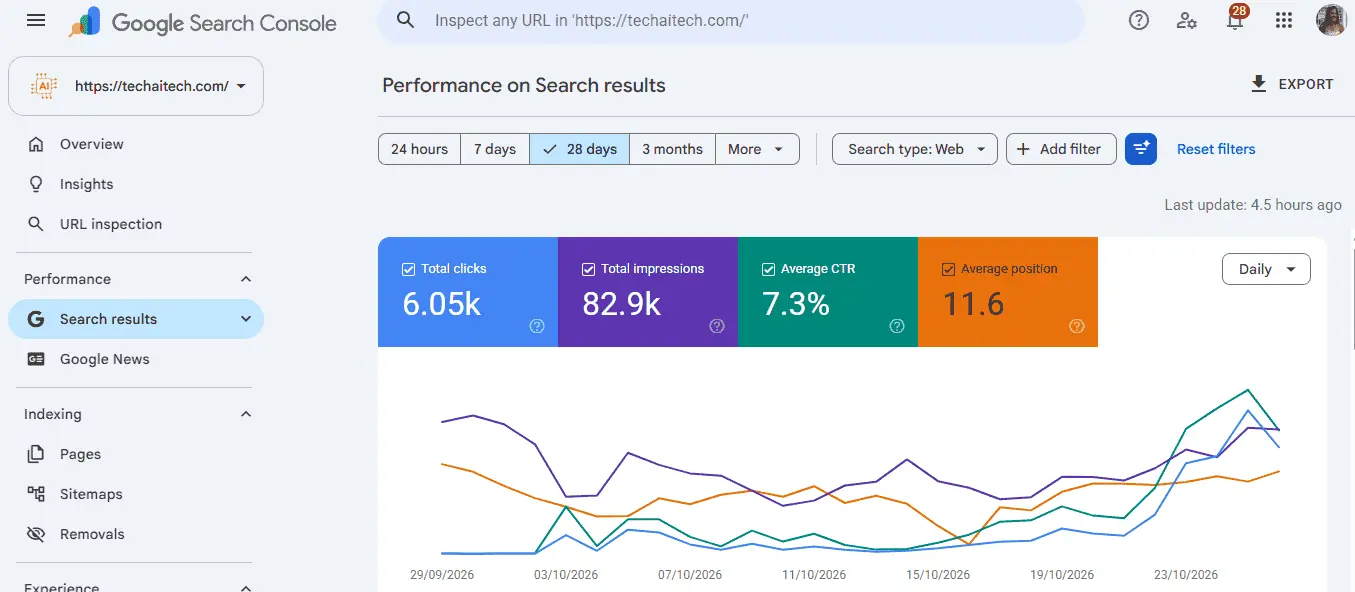 Google Search Console is a free tool from Google that helps users learn about the way their websites perform on Google Search. Bloggers, small businesses, web developers, and agencies can all use this service, and the basic tool is the same for everybody.
It is done in two stages.
The reports provide you with information about how well you have been performing in the search engine. This includes the number of times your pages have appeared in searches performed, the number of clicks that they have received, the pages that have been indexed by Google, the performance of the pages on actual users, and whether there was an issue detected by Google.
The actions allow you to take a course of action to rectify the situation. Here, you can submit a sitemap, which is basically a map to the pages available on your website, request that Google crawls a URL, or notify them that you have rectified an issue.
A few things it doesn’t do, because beginners often expect more:
- It doesn’t guarantee rankings. It shows where you stand, but it doesn’t move you up.
- It doesn’t replace analytics. It covers what happens before the click, not what people do on your site.
- It doesn’t show everything. Some data is filtered for privacy, and most of it arrives with a delay.
Google explains the tool in its own Search Console Help pages. Bookmark them. When a blog post and Google’s documentation disagree, trust the documentation.
Google Search Console vs Google Analytics 4
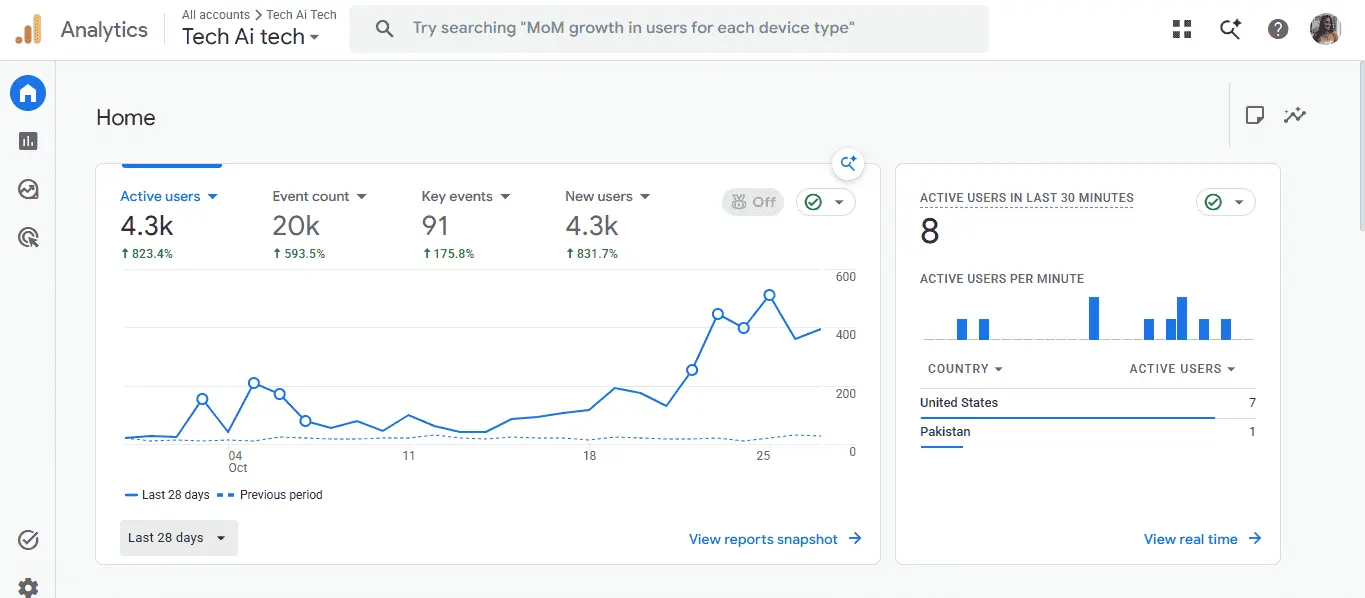 GSC shows how Google sees your site before someone clicks. Google Analytics 4 (GA4) shows what people do after they arrive. They answer different questions, so most sites use both.
| Feature | Google Search Console (GSC) | Google Analytics 4 (GA4) |
| Question it answers | How do people find me on Google? | What do people do on my site? |
| Data source | Google Search results | A tracking tag on your pages |
| Example question | Which searches bring up my page? | Which pages keep visitors reading? |
| Covers | Google Search only | All traffic sources |
One thing confuses almost everyone: clicks in GSC will not match users in GA4. They’re counted differently, and GA4 only sees people whose browsers allow the tracking tag to run. Don’t spend an evening trying to make them match.
GA4 is also where you look at traffic sources beyond Google. If you tag your own links, my guide to UTM parameters explains how. To set up goals on the GA4 side, see the GA4 conversion tracking guide. And for what visitors do after landing, bounce rate vs exit rate covers it in plain language.
Google Search Console vs Google Cloud Console (and Bing Webmaster Tools)
Google Cloud Console is a different product. It manages cloud services such as servers, databases, APIs and billing, and it isn’t an SEO tool. The only overlap is the Search Console API, which needs a Cloud project to get access. Bing Webmaster Tools is the real counterpart to GSC, and it does the same job for Bing.
| Tool | What it’s for | Who needs it |
| Google Search Console | Search performance and indexing on Google | Anyone with a website |
| Google Cloud Console | Managing cloud servers, APIs and billing | Developers and businesses using Google Cloud |
| Bing Webmaster Tools | Search performance and indexing on Bing | Anyone who wants Bing traffic too |
From Google Webmaster Tools to Search Console
“Google Webmaster Tools” is the old name of the same tool. Google renamed Webmaster Tools to Search Console on May 20, 2015, because its users included not only webmasters but also small business owners, SEO experts, marketers and developers. (Google’s announcement)
So is Webmaster Tools still available? Not under that name. If you log in to Search Console today, you’re using the modern version of it.
The purpose is the same, but the reports have been rebuilt and some names changed. The one to remember: older guides call the main indexing report “Index Coverage,” and it’s now called Page indexing. If a tutorial still says Index Coverage, check the rest of it carefully before trusting it.
How Do I Log In to Google Search Console?
Go to search.google.com/search-console and sign in with the Google account that owns the site or was invited to it. Then choose your property from the dropdown at the top left.
When it works, that’s all there is. When it doesn’t, check these:
- Wrong Google account. This is a common cause. If you have a personal Gmail, a work account and an old one, you may be signed into the wrong one. Try a private window and sign in with the account you used for setup.
- “No property found” or an empty list. Your account probably doesn’t have access. Ask whoever set the tool up to add you.
- “Verify ownership” appears again. The verification method was probably removed, for example a meta tag lost during a theme change or a DNS record cleaned up. Verify again and leave the method in place this time.
- “You don’t have access.” Ask the site owner to add your email under Users and permissions.
- DNS verification isn’t working. DNS is the set of settings that connects your domain name to your website. Changes can take a while to spread, so wait and try again later. [Check Google’s help page for an exact wait time before adding a number.]
One security habit I’d push on everyone: turn on 2-step verification for the Google account that owns your Search Console. That account can see your data and control who else gets access. I put together a short two-factor authentication guide if you need a walkthrough.
How to Set Up Google Search Console (Step by Step)
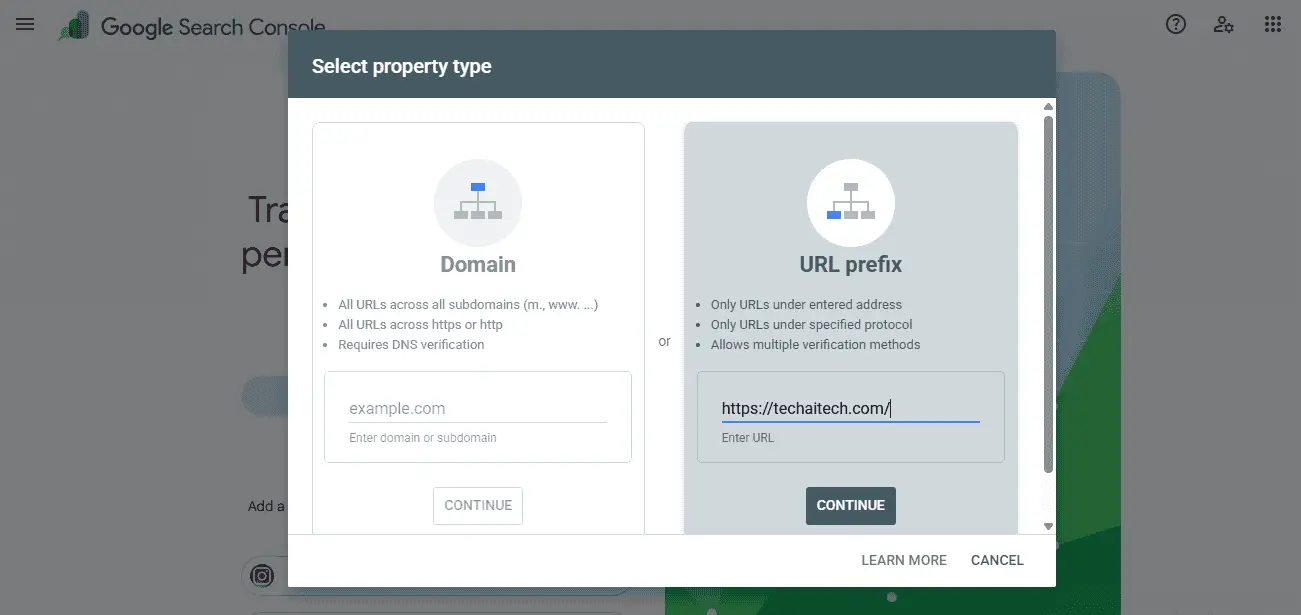 Setting up GSC means adding your site as a “property” and proving you own it. First you choose between two property types.
| Feature | Domain property | URL prefix property |
| Coverage | All versions of your domain (http, https, www, subdomains) | One exact URL version only |
| Verification | DNS record only | Several methods (HTML file, meta tag, Google Analytics, Tag Manager, DNS) |
| Best for | Seeing everything in one place | When you can’t edit DNS, or want to track one section |
If you can reach your DNS settings, go with a Domain property. You get the full picture and don’t have to wonder whether you entered the right version of your URL. If DNS is out of reach, URL prefix works fine.
The steps:
- Open Search Console and click Add property.
- Choose Domain or UR L prefix and enter your site.
- Follow the verification step Google shows you.
- Click Verify.
- Leave the verification in place after it succeeds. If you remove it, Google can ask you to verify again later.
If your site runs on WordPress
techaitech.com runs on WordPress, so this is the setup I know best. [Add your real setup: the SEO plugin name, your actual sitemap URL, and whether you verified with DNS or the plugin’s meta tag.]
Most SEO plugins have a feature that allows you to get the sitemap automatically, most commonly located at yourdomain.com/sitemap.xml but the exact URL will depend on your SEO plugin’s documentation. All you need to do is copy the URL, go to the Sitemaps section in Google Search Console, enter the URL, and click “Submit.” Be careful not to disable the verification meta tag from your SEO plugin.
What to expect after setup
Empty reports on day one are normal. Data usually shows up within a day or two, and a brand-new site may show very little for a while. Come back in a few days.
Users and permissions
Not everyone needs the keys. Search Console has these permission levels:
- Owner: full control, including adding and removing users. Keep this to one or two people you fully trust.
- Full user: can see all data and take most actions, but can’t manage users.
- Restricted user: can view most data but can’t take actions. Good for clients or new team members.
- Associate: a link between Search Console and another Google product, not a person.
Every few months, go through the list and remove anyone who no longer works with you. A former freelancer who still has Owner access is easy to forget and a real risk.
Key Metrics Explained
The Performance report relies on the following four metrics: clicks, impressions, click-through rate (CTR), and average position.
- Clicks: number of times visitors clicked through to your site from Google Search.
- Impressions: the number of times your site showed up in search results regardless of clicking.
- CTR: clicks divided by impressions in percent form.
- Average Position: Average position occupied by your site among the other sites appearing in the search results.
For example. This data is invented rather than taken from a particular website. If your page receives 1,000 impressions in a month with 30 clicks, then your CTR will be 30 ÷ 1,000 = 3%. With an average position 8, you occupy a position on the bottom part of page 1, which means fewer clicks. A clearer title and description can help, and I cover that in how to write a meta description.
A few pitfalls to know about:
- Average position mixes many searches. One page can rank 2nd for one query and 40th for another, and GSC averages them. Look at individual queries before drawing conclusions.
- New topics can pull the average down. If you start appearing for lots of new, low-ranking queries, your average gets worse even though you lost nothing.
- Compare the same periods. Set 28 days against the previous 28, not a holiday week against a normal one.
- Data isn’t instant. Most reports run a couple of days behind.
- You only get 16 months of history. If a number matters, export it.
- AI activity is handled separately. AI Overviews and AI Mode activity is counted inside the Web search type in your main Performance report. Search Console also has a Generative AI performance report, which is rolling out in phases and shows impressions only. It does not show clicks and it does not split AI Overviews from AI Mode. Check Google’s Search Console Help for what’s available on your property. Last verified: [date].
A Beginner’s Tour of the Main Reports
A beginner needs only a few of these reports. Start with Performance, Pages and Sitemaps, and treat the rest as occasional checks. Menu names change from time to time, so compare this list with what you see in your own account.
| Report | Question it answers | What to do as a beginner |
| Overview | How is my site doing at a glance? | Glance at it, then move on |
| Insights | Which topics and queries are rising or falling? | Look for groups of related queries and content ideas. See semantic SEO vs keyword SEO |
| Performance (Search results) | Which queries and pages get clicks and impressions? | Check top queries and pages weekly |
| Generative AI performance | How often do links to my pages appear in AI Overviews and AI Mode? | Treat it as a baseline for impressions. It is not a ranking report. Availability can vary |
| URL Inspection | What does Google know about this one URL? | Paste in a new post to see whether it’s indexed |
| Pages (indexing) | Which pages are indexed, and which aren’t? | Look for new problems, and don’t chase every excluded page |
| Sitemaps | Did Google read my sitemap? | Submit it once and confirm it says “Success” |
| Core Web Vitals | Do real visitors get a fast, stable page? | Look for URLs marked “Poor” |
| HTTPS | Are my pages served securely? | Make sure nothing is flagged. See HTTP vs HTTPS |
| Enhancements | Is my structured data valid? | Fix errors if you use it |
| Manual actions / Security issues | Has Google penalized or flagged my site? | It should say “No issues.” If not, deal with it first |
| Links | Who links to me, and how do I link internally? | Skim for new links and your most-linked pages |
| Crawl Stats | How often does Google visit my site? | Advanced. Google says small sites rarely need it |
Some terms from that table. Structured data is extra code that labels things on your page for search engines. Core Web Vitals has three measurements: Largest Contentful Paint (LCP), which is how fast the main content loads; Interaction to Next Paint (INP), which is how quickly the page responds when someone taps or clicks; and Cumulative Layout Shift (CLS), which is how much the page jumps around while loading.
Core Web Vitals uses real visitor data. A new or low-traffic site may show “not enough data,” which is normal.
A note on older advice. Some guides still send you to the Mobile Usability report or the robots.txt Tester. Google has retired both, and robots.txt now has its own report under Settings. Also, Core Web Vitals now uses INP, not FID, so be careful with any guide that still mentions FID.
Indexing Messages: Should You Worry?
Most indexing messages look scarier than they are. Before you panic, look up what the status means. Google explains each one on its help page for why pages aren’t indexed.
Two terms first. “Crawled” means Google’s bot has visited the page. A “canonical” is the version of a page you want Google to treat as the main one.
| Status | What it means | Worry level | What to do |
| Page with redirect | The URL sends visitors somewhere else | Low | Usually fine. Check the destination is the page you want |
| Discovered – currently not indexed | Google knows the URL but hasn’t crawled it yet | Low to medium | Be patient, improve internal links, make sure the page is worth indexing |
| Crawled – currently not indexed | Google visited but chose not to index it | Medium | Check content quality and whether it overlaps with another page |
| Excluded by ‘noindex’ tag | The page tells Google not to index it | Depends | Fine if intended. A problem if you didn’t mean to do it |
| Not found (404) | The URL doesn’t exist | Low | Fine for deleted pages. Fix it if the URL should exist |
| Duplicate without user-selected canonical | Google saw similar pages and picked one itself | Low to medium | Set a canonical tag if you care which version wins |
| Server error (5xx) | Your server failed when Google visited | High if it keeps happening | Check your hosting and talk to your host if it repeats |
“Request indexing” is a request, not a guarantee. You can ask Google to look at a URL through URL Inspection, but Google decides whether and when to index it. Pressing the button ten times doesn’t change that.
Your First 7 Days and a 30-Minute Weekly Routine
Verify your site and submit your sitemap on day one, then check back on day seven. After that, one 30-minute check a week is enough. A small routine beats checking nervously every day.
First 7 days
- Day 1: Verify your site and submit your sitemap.
- Days 2 to 3: Open the Pages report and see what Google has found so far.
- Day 7: Take your first real look at the Performance report.
Weekly routine
- Manual actions and Security issues. Both should be clear. If not, deal with it first.
- Pages. Look for new problems, not old ones.
- Performance. Check top queries and pages, and note what’s rising.
- Core Web Vitals. Did any URLs move into “Poor”?
- Links and new pages. Were your latest posts picked up?
Do these five things once a week and you’ll catch most problems early, with a lot less stress.
Using Search Console in the AI Search Era
Search Console only measures Google. It can’t tell you how you show up in other chatbots or AI assistants. For Google’s own AI features, AI Overviews and AI Mode activity is counted in your main Performance report, and the separate Generative AI performance report shows impressions only, with no clicks and no split between the two. It’s rolling out in phases, so check Google’s Search Console Help for what your property has.
Keep your expectations realistic. Nobody can promise that an AI system will cite your page. What you can do is be clear, accurate and easy to verify (here’s what E-E-A-T looks like in practice), which is good advice for ordinary search too. If you want data from another search engine, Bing Webmaster Tools is a useful second source.
Your Next Step
Google Search Console is simple once you know where to look. You don’t need to master every report. You need your site verified, a sitemap submitted and a weekly habit.
So here’s the one thing I’d do today: verify your site. Everything else gets easier once data starts coming in.
About the author: Ayaz Saifi is the founder of techaitech.com. [Add your final, true, consistent bio here. For credibility on this topic, see also what is EEAT and how to demonstrate it on a blog.] Reviewed for technical accuracy by Ahsan Qazi, SEO Specialist, on [real review date].
Questions or corrections? Use the Contact page and I’ll update this guide.
Sources
- Google Search Console Help: what Search Console is, verification, Page indexing reasons, Crawl Stats
- Google Search Central documentation: ask Google to recrawl, page experience, Core Web Vitals
- web.dev: Interaction to Next Paint (INP)
- Google Search Central blog: Announcing Google Search Console (May 20, 2015)
Frequently Asked Questions
Is Google Search Console free?
Yes. Google Search Console is free for anyone who owns or manages a website. You don’t need a paid plan for any report in this guide. All you need is a Google account and a way to prove you own the site, such as a DNS record or a meta tag.
Do I need Google Search Console to appear on Google?
No. Google can find and index your site without it. Search Console just shows you how your pages are doing and warns you about problems early. Without it, you only notice something broke when traffic drops. Setup takes little effort, so I’d treat it as a basic part of running any site.
What is the difference between Search Console and Google Analytics?
Search Console shows what happens before the click: which Google searches show your pages and how often people choose them. Google Analytics 4 shows what happens after the click: which pages visitors read and what they do next. Search Console helps you get found, and GA4 helps you understand visitors, so most sites benefit from both.
Is Google Cloud Console the same thing?
No. Google Cloud Console manages cloud services such as servers, databases, APIs and billing, and it isn’t an SEO tool. If you want to check search performance or indexing, you need Search Console at search.google.com/search-console. The only overlap is the Search Console API, which requires a Cloud project.
Is Google Webmaster Tools still available?
Not under that name. Google renamed it Search Console in 2015, so if you log in to Search Console today you’re using the modern version of the same tool. Old guides may still use the Webmaster Tools name or old report names like Index Coverage, which is now called Page indexing.
Why is my data empty after setup?
Data usually takes a day or two to appear, and a new site may show very little at first. If the reports are still empty after about a week, open Settings and check that your ownership verification is still in place. A removed meta tag or DNS record is a common reason.
How long does indexing take after “Request indexing”?
It varies. Sometimes it takes hours, and sometimes days or weeks. Request indexing asks Google to look at the page, but it doesn’t guarantee the page will be indexed, and clicking the button repeatedly won’t speed anything up. If a page stays out for weeks, check its content and internal links instead.
Who should have Owner access?
Only people you fully trust, ideally one or two. Owners can add and remove other users, so a forgotten freelancer with Owner access is a real risk. Give everyone else Full or Restricted access depending on whether they need to take actions, and review the user list every few months.