





































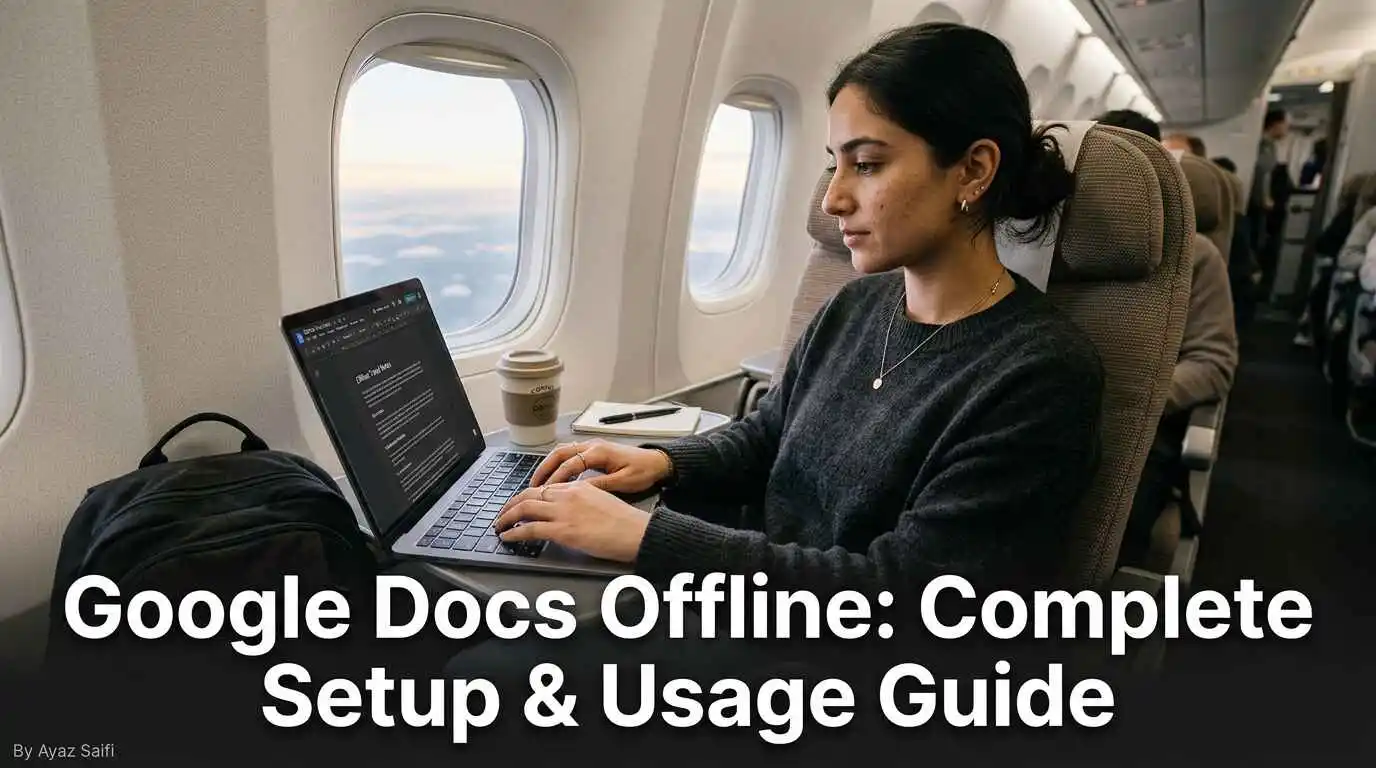
We are all experienced when you’re working on a crucial task, and suddenly your Wi-Fi stops working. Perhaps you are on a lengthy, internet-less flight, but you urgently want to complete the draft you’re working on. Google Docs are viewed as cloud tools by many people, but the truth is, you can work on them properly without the internet.
You can learn how to use Google Docs offline by following this guide. You may also know that you can always synchronize your data so that nothing gets lost due to a connection.
Can You Use Google Docs Offline?
Of course you can. Google has a unique feature which is called Offline Mode that lets you create, view, and edit your documents when you have no internet connection.
What Google Docs Offline Mode Actually Does
When you turn on this mode, Google Docs caches files in the local storage of your computer. Your browser saves your text box changes offline in the browser application. Once your PC is connected to the Internet, changes are uploaded automatically to the cloud.
When Offline Mode Is Useful
- Traveling means working on trains, buses, or aeroplanes.
- Taking lecture notes in classrooms with poor wi-fi.
- Remote workers: Maintaining productivity amidst power or Internet service interruptions.
- Turning off wifi intentionally to focus properly.
What You Need Before Using Google Docs Offline
 You can’t just switch off Wi-Fi and simply expect it to work when you turn it back on. You can configure some settings while still connected to your device.
Supported Browsers & Devices
Google Chrome and Microsoft Edge are the best options for offline work. Additionally, download Google Docs Offline from the official Google Docs Offline extension on the Chrome Web Store; only install it from this official listing, since third-party copies of browser extensions can carry security risks. If you’re comparing offline-capable productivity tools in general, our guide on using Notion for project management as a beginner covers a similar workspace tool that also has its own offline quirks worth knowing before you rely on it while travelling. Irish mobile customers can utilize Google Docs for Android and iOS, which comes with native offline support.
Google Account & Storage Requirements
- You have to log in to your Google Account.
- You must have sufficient free storage on your computer or phone for downloading the offline files.
- Incognito mode is unusable since it doesn’t store your information on local hardware.
How to Turn On Google Docs Offline (Step-by-Step)
Do it carefully in order to protect your work stepwise.
Enable Offline Mode in Google Drive
- Go to your web browser and head towards. drive.google.com.
- Select the gear icon in the upper right corner. For the exact, most current version of these steps, Google’s official offline setup guide is worth bookmarking since Google occasionally tweaks the settings menu layout.
- Please scroll down to the Offline part.
- Mark the option: “Create, open, and edit my recent Google Docs, Sheets, and Slides files on this device when offline”.
- Hit Finish.
Make Specific Google Docs Available Offline
- In its default state, Google saves your “recent” files only to keep a particular essential file always at hand.
- Select Google Drive or the Google Docs homepage screen.
- Pick a file with which to work.
- Switch on the Available offline option.
Enable Offline Access for Google Sheets & Slides
The procedure is precisely the same for Sheets and Slides. After the drive setting is enabled, it is enabled for all three services. Just ensure to manually “star” or mark your large spreadsheets for offline use to get them completely downloaded.
How to Work in Google Docs Offline
Offline, it almost feels like being online, but there are some differences.
Creating New Documents Offline
When your extension is installed, you can visit docs.new from your browser without any internet. You will see an empty page. As soon as you begin typing something in the text area, the little “lightning bolt” or the word “offline” appears in the title. Your changes are being saved to your device.
Editing Existing Documents Offline
Any file you’ve marked as “Available offline” can be opened. You’re also free to use the standard formatting – bold, headers, fonts, etc. Features that require the web will not work, like Google Search in the doc or certain Add-ons.
What Changes Sync Automatically?
Every word you type, every image you insert (from your computer), and formatting changes you made are tracked. You don’t have to hit the save button because Google saves it locally.
What Works – and What Doesn’t – in Offline Mode
You should remember to manage your expectations. A powerful offline mode, but not without limits.
| Feature | Works Offline? |
| Typing and Editing | Yes |
| Basic Formatting | Yes |
| Spell Check | Yes (Limited) |
| Comments and Suggestions | Yes (Saved as drafts) |
| Collaboration / Live Chat | No |
| Inserting Online Images | No |
| File Conversion (Export to PDF) | No |
| Using Third-party Extensions | No |
How Syncing Works When You Go Back Online
 It is the most important section. When you reconnect to Wi-Fi, check the top of your document. Once the message indicates it is “Syncing to Drive” and changes to “All changes saved to Drive,” your work is in the cloud. If syncing ever seems stuck, Google’s own Docs Editors Help community is a good place to check whether it’s a known, temporary issue rather than something specific to your setup.
Avoiding File Conflicts
A “conflict” occurs when you edit a document offline on your laptop and someone edits the same document online at the same time. This kind of sync issue is one of the small but real trade-offs of moving a team onto cloud tools. Our complete setup guide to Google Workspace for small business covers how to configure sharing and permissions in a way that reduces these conflicts in the first place. Do your best to work on a file only if you’re the only one who will be offline, to avoid this. When conflicts occur, Google typically creates copies or prompts you for changes to retain or discard. If you’re managing offline access for an entire team rather than just yourself, Google Workspace’s official admin guide to offline access explains how admins can control this at the organization level to reduce conflicts across shared files.
Common Google Docs Offline Problems (And Fixes)
Offline Mode Not Working
- Verify the extension: Confirm that the Chrome extension “Google Docs Offline” is active.
- Are you using an alternative profile belonging to Google? Offline settings apply to each device and profile.
- Your computer does not have enough disk space to save an offline cache from Google.
Changes Not Syncing
If you are back online but your changes are not showing on other devices.
- Leave the tab open for some time.
- Ensure your login details belong to the right account.
- The page should only be refreshed after confirming the disappearance of the “lightning bolt” icon.
Using Third-party Extensions: No. If your workflow depends on add-ons that connect Docs to other tools, it helps to understand how APIs work even if you’re not a programmer, since most of these integrations rely on a live internet connection to function, which is exactly why they break in offline mode.
Best Practices for Using Google Docs Offline Safely
- While connected to Wi-Fi, always download one last line before going off the grid so the latest file loads.
- When you are working offline, do not abruptly close the tab. Allow the “Save” status to complete.
- After reconnecting, to see if your offline session was recorded correctly, check your version history (file > version history).It’s also worth making sure the account itself is properly secured, especially if you’re working on shared devices while travelling see our guide to two-factor authentication for how to add that extra layer of protection to your Google account.
Google Docs Offline for Students & Remote Workers
 For the students, this is a boon. If you have a poor internet connection, you may still write your essays on a train or in a library. For remote workers, it means you don’t have to stop being productive just cause your router has restarted. This kind of reliability matters even more once you’re coordinating with a team rather than working solo. Our guide to collaboration tools for small remote teams covers how to keep a distributed team functioning smoothly even when someone’s connection drops. It integrates Microsoft Word, traditional desktop software, and Google Docs, a modern cloud application.
Final Thoughts: Is Google Docs Offline Worth Using?
Sure. It allows Google Docs to be a credible professional tool that does not need a permanent signal. Although not every single feature works offline, the overall writing and editing experience is smooth. If you don’t want to miss out on good deals, book it now, since everyone needs it.
FAQs
Can I use Google Docs offline on Windows or Mac?
That’s right. It functions on both Windows and macOS as long as the Chrome or Edge application is used.
Does Google Docs save work offline automatically?
Certainly, you can access files offline if the offline option in Google Drive settings was enabled by you earlier.
Can multiple people edit offline?
No. Working together requires a live connection. When two people make offline edits to the same file, Google will merge the changes when both edit the document again online, but it may break formatting.